
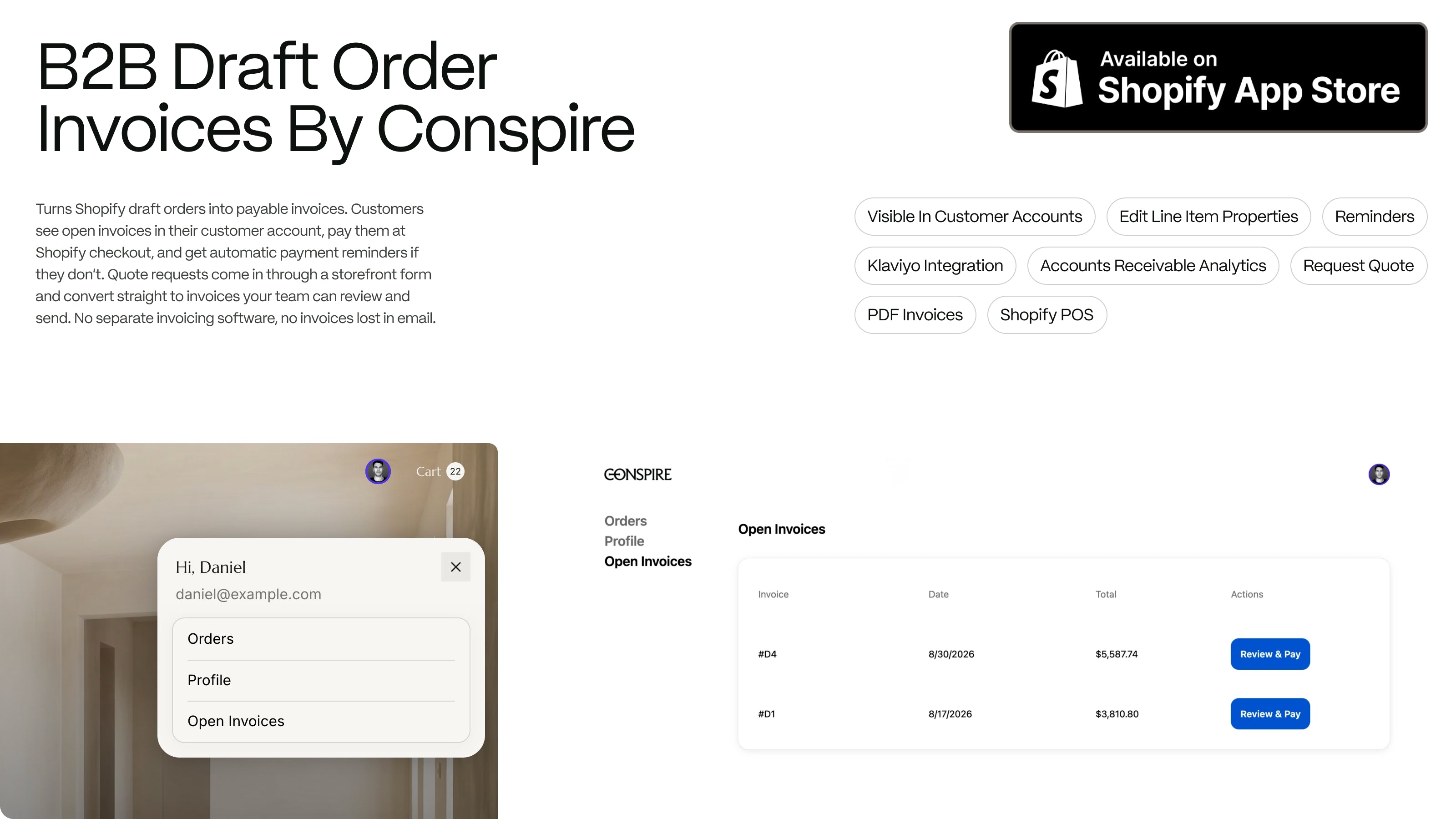
Shopify already has an invoicing tool. It is called a draft order, and most stores use it about once a month for a phone order and then forget it exists. If you sell wholesale, quote custom work, or take orders any way other than a customer clicking "Buy" on your storefront, draft orders are how you get paid inside Shopify, using the same taxes, payment providers, and order history as the rest of your business, without a second invoicing app bolted on the side.
After you click "Send invoice," though, Shopify is done. The invoice goes out as one email. If the buyer misses it, or forwards it to accounts payable and nobody follows up, it sits unpaid and you find out when you reconcile the month. This guide walks through what a draft order is, how to create one and set payment terms, how the invoice gets sent and paid, and then how to close the gaps Shopify leaves open so invoices get seen and paid without you chasing them.
What is a draft order in Shopify?
A draft order is an order you build by hand in the Shopify admin instead of the customer building it at checkout. You pick the products, set the quantities and prices, attach a customer, add shipping and taxes, and then either take payment yourself or send the customer an invoice with a link to pay. Once it is paid, it becomes a regular order and flows into fulfillment like everything else.
Stores use draft orders for:
- Wholesale and B2B orders, where pricing is negotiated per account and the buyer expects an invoice rather than a cart.
- Phone, email, and trade-show orders. None of these ever touch the storefront.
- Quotes and custom work, where the final price depends on a conversation.
- Pre-orders, deposits, and special terms the standard checkout cannot express.
- In-store pickups and POS sales that started as a request from a customer.
Every "can I send an invoice through Shopify?" question we get is really a draft order question. Yes, you can, and the rest of this article is how.
How to create a draft order and set payment terms
From your Shopify admin:
- Go to Orders and click Create order. Shopify opens a new draft.
- Add products. You can search your catalog or add a custom item with its own name and price, which is how one-off services and custom quotes get onto an invoice.
- Attach the customer. Existing customers pull in their saved addresses; new ones can be created right there.
- Adjust pricing. Apply a discount to the whole order or to individual lines, add shipping, and let Shopify calculate tax from the customer's address.
- Set payment terms. Under Payment, choose Payment due later and pick a term: due on receipt, net 7 through net 90, or a fixed date. Draft orders have supported payment terms on every Shopify plan for years, so "net 30 on Shopify" does not require Plus.
- Add a note and any order attributes your fulfillment or accounting team needs, then save.
Two details will save you time later. Use a real customer email, because the invoice and the checkout link, and later any reminders, all go to that address. And if you send the same kind of invoice over and over, keep track of which line item properties and attributes you add each time. Retyping those gets tedious fast, which is one of the reasons we automated it in the app below.
How to send the invoice and how your customer pays
With the draft saved, click Send invoice. Shopify opens an email preview with a subject line and a message you can edit, then sends it from your store's notification address. The email contains a "Complete your purchase" button that opens a checkout for that specific order, with the same items and prices, and the same payment methods you offer everywhere else.
Your customer pays there, the draft converts to a paid order, and you fulfill it. Checkout is not the only way a draft gets paid, though. A draft order can also be settled three other ways:
- Mark as paid. If the customer paid by wire, check, or a terminal outside Shopify, mark the draft paid and it becomes an order without a checkout.
- Enter a card in the admin. For phone orders you can take card details directly, if your payment provider allows it.
- Complete it at POS. A draft can be pulled up in Shopify POS and paid in person when the customer comes in.
If you set payment terms, you create the order right away instead of waiting on checkout. It sits in Orders as payment pending with the due date attached, and you send the invoice from there. Shopify does have a payment reminder notification for those orders as the due date gets close. A plain draft order invoice, which is what most stores send, gets no reminder at all.
Where the built-in flow falls apart
None of the above is hard. Shopify treats an invoice as a single email, though, and stops there, which leaves you to manage everything between "Send invoice" and "Paid" on your own.
The invoice lives in one inbox. Unless the buyer is set up as a B2B company contact on Shopify's new customer accounts, nothing on your storefront shows them what they owe. A buyer who cannot find the email emails you. One who forwarded it to accounts payable gets a request back from AP for a copy, usually as a PDF, which Shopify does not produce for a draft order.
Then nobody follows up. An unpaid draft order invoice does not trigger anything in Shopify, no reminder on day three and no flag in your admin on day fourteen. Your accounts receivable report is the list of open drafts, and that list cannot tell you whether anyone opened the email or clicked the link.
Quotes start in email, too. When a buyer wants pricing on a cart's worth of product, the request arrives as a message and someone on your team retypes it into a draft order, so the paper trail is split across two systems from the start.
And POS staff cannot see any of it. A customer who was invoiced online and walks in to pay becomes a lookup problem for whoever is on the register.
Picture a $4,200 wholesale invoice sent on the 3rd. It sits in the buyer's spam folder until the 14th, gets forwarded to their AP team, who ask for a PDF on the 18th, and gets paid sometime in the second month. Now multiply that by every account you invoice.
Turning draft orders into an accounts receivable workflow
We built B2B Draft Order Invoices GOAT to close those gaps without replacing anything Shopify already does well. Draft orders stay in Shopify and payment still goes through Shopify's invoice checkout; the app adds the pieces around them.
Open invoices on the customer account page
A theme block lists every open draft order invoice on the customer's account page, with a Pay Now button that opens the same secure checkout link Shopify generated when you sent the invoice. For stores on Shopify's new customer accounts, extensions add a dedicated Open Invoices page and a block on the order index. Either way, the buyer logs in and sees what they owe, then pays from there, and the "I can't find the email" support ticket stops arriving. Setup guide.
Automatic payment reminders
Turn on reminders and pick a schedule, up to five emails anywhere from one to sixty days after the invoice was sent. The default is 3, 7, and 14 days. Reminders go out on the same Shopify email template as the original invoice, with the customer's secure payment link, and they stop the moment the invoice is paid. They are off until you turn them on, and drafts without a customer email are skipped. If you run Klaviyo, the app sends invoice and reminder events there as well, so you can build branded flows on top, SMS included. How reminders work.
An accounts receivable view, with email tracking
The dashboard puts open invoices, invoice views, and conversions on one screen. Every invoice and reminder email is logged against its draft order with delivery status, opens, and clicks, so when a buyer says they never got it, you can check whether they opened it on Tuesday.
Invoice PDFs
Any draft order invoice can be downloaded as a PDF. It is generated from the live draft, so it carries store details, invoice name and date, billing details, every line with SKU, quantity, and unit price, then subtotal, discounts, shipping, tax, total, and the order note. Download it from the admin or let customers save their own copy. It is the same document accounts payable was going to ask you for anyway. Invoice PDFs.
Quote requests from the cart
Add a Request a Quote block to your cart page. Instead of checking out, the customer submits their cart with name, email, phone, and a note. The request lands in the app with a status, you convert it to a draft order with one click, adjust pricing, and send the invoice. From there it is a normal invoice. It shows up on the customer's account page and picks up the reminder schedule, and the buyer pays through the same checkout as everything else. Quote requests.
Templates and advanced draft controls
Save the line item properties and order attributes you add every time as templates and apply them in one click. You can also split line items, add custom properties, and attach notes from inside the app rather than retyping them in the draft editor. Templates.
Shopify POS
A Draft Orders tile on the POS smart grid lists open drafts. Staff can load a draft's line items into the POS cart and take payment in person, so the customer who was invoiced online and wants to pay at the counter is a thirty-second transaction. POS guide.
Pricing scales with your Shopify plan and starts at $5 a month for Basic stores, with a free trial on every plan. Install it from the Shopify App Store and follow the first invoice walkthrough; most stores are live in under fifteen minutes.
Do you need Shopify Plus for any of this?
No. Draft orders, invoices, and payment terms are on every Shopify plan and always have been. Since April 2026, Shopify's native B2B features (company profiles, catalogs with account-specific pricing, company-level payment terms) have been available on every plan too, so the old "you need Plus for wholesale" answer is out of date.
Native B2B still does not make invoices visible, chase them, produce PDFs, or take quote requests, and that is what this app adds, on Basic through Plus. For the pricing side of wholesale (tiered discounts, net terms at signup, a trade program application flow) pair it with Wholesale GOAT. If you are standing up B2B on Shopify from scratch and want someone who has done it before, that is our agency work; talk to us.
Frequently asked questions
Can you send an invoice through Shopify?
Yes. Create a draft order, add the products and customer, and click Send invoice. Shopify emails the customer a secure checkout link for that order. This works on every plan with no extra app.
How does a customer pay a Shopify draft order?
Through the checkout link in the invoice email, using any payment method your store accepts. You can also mark the draft as paid for offline payments, enter a card in the admin, or complete it at POS. With the app installed, customers can also pay from their account page.
Can I set net 30 on a Shopify draft order?
Yes. Under Payment, choose Payment due later and pick net 30, or any term from due on receipt through net 90, or a fixed date. This is available on all plans.
Can customers see draft orders in their Shopify account?
Not by default, unless they are a B2B company contact using new customer accounts. B2B Draft Order Invoices GOAT adds an open invoices list to classic account pages and to new customer accounts so any invoiced customer can see and pay what they owe.
Does Shopify send reminders for unpaid draft order invoices?
Not for a standard draft order invoice. The app sends up to five reminders on a schedule you set, and stops when the invoice is paid.
Is a draft order invoice the same as a Shopify payment link?
Effectively, yes. The invoice email contains a checkout link tied to that draft order. You can copy that link and send it any way you like.
Does this work with Shopify POS?
Yes. Draft orders can be completed at POS natively, and the app adds a tile that lists open drafts and loads them into the POS cart.
Get set up
If you already send draft order invoices, install B2B Draft Order Invoices GOAT, enable the account page block, and turn on reminders. Your existing open invoices sync over automatically, and the next invoice you send will be seen, followed up on, and paid with no chasing on your end.
For stores building out B2B on Shopify that want invoicing, pricing, and customer accounts designed as one system, Conspire has done that work for wholesale brands since 2011. Tell us about your store and we will map out the setup.


Shopify SimGym: Test Your Store With AI Shoppers Before the Real Ones Show Up